PlacePad
A handwriting diary with a notebook
for every place and purpose
Offline-first · No account needed
A handwriting diary with a notebook
for every place and purpose
Offline-first · No account needed
A handwriting diary that keeps the "where" and "what for" of your memories.
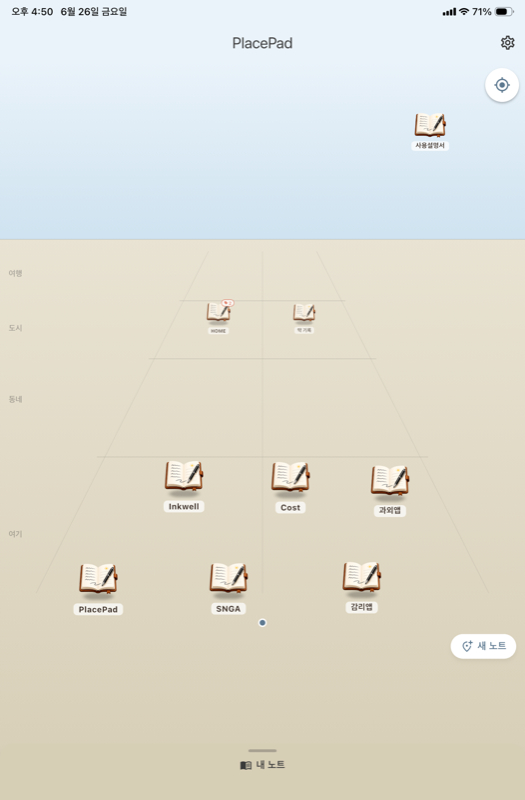
Home, work, your favorite café… place notes sit on the radar's ground in four distance bands — here, neighborhood, city, travel. Purpose notes that don't need a location (reading, ideas, trip plans…) float in the sky. Walk up to a place and its notes spread out in front of you.
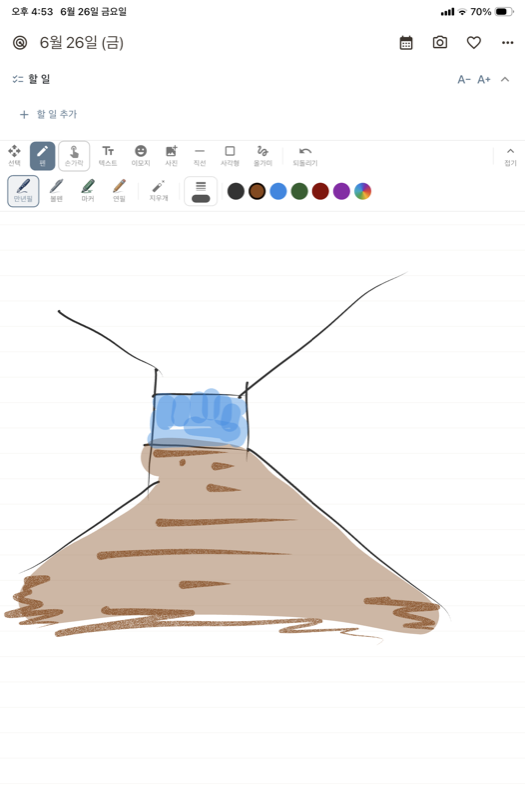
Fountain pen, ballpoint, marker and pencil — with Apple Pencil or your finger. Any thickness and color, plus shapes like circles, triangles and stars, and document markers such as checks and arrows. Add photos, emoji and handwriting-font text too.
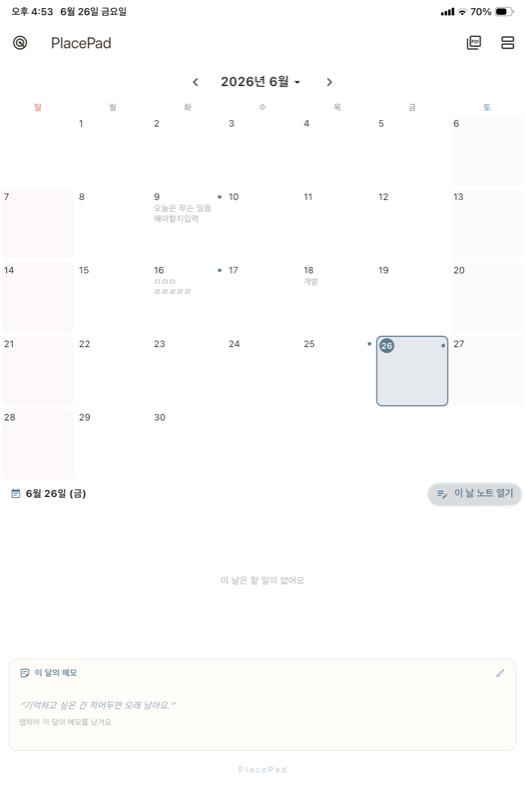
Every notebook has a calendar, and each day is one page. Manage to-dos by date with repeats (daily, weekly, monthly), and see every note's to-dos gathered in the unified calendar. With the app in Korean, holidays, lunar dates and seasonal terms show too.
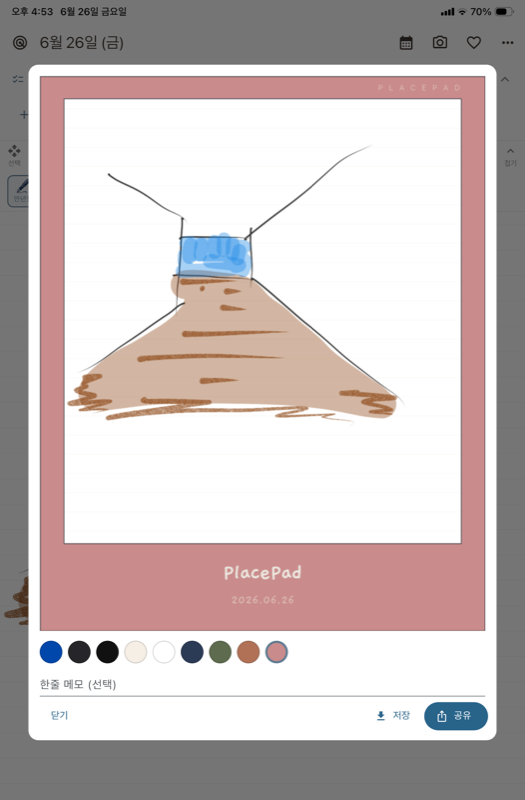
Turn today's page into a polaroid card to save or share with friends. Export a whole month — or just one day — as a PDF.
Everything works without internet · optional sync via your own cloud
No account, no login
All records stay on your phone
Your records, yours to keep
You'll get the hang of it in about a minute.
Tap "New note", give it a name, and it's created right where you are. A note for each place — home, work, a café. Notes that don't need a place can be created as "sky notes" that live in the sky.
The radar shows your surroundings as a little landscape. Notes sit on the ground in four bands by distance — here, neighborhood, city, travel (notes in the farther bands are bundled together) — and sky notes without a location float in the sky. Press a note briefly and drag to move it — ground or sky, its new spot is remembered. Tap a note icon to open that note's calendar. Pinch to zoom in and out, and the "Re‑scan" button refreshes your location. To see everything as a list, pull up the "My notes" sheet from the bottom (drag it or tap the handle). (A one‑time location notice appears the first time. If you decline, a button lets you enable it later.)
In the "My notes" sheet, press and hold a note to start selecting. Tap more notes, then tap "Group together" and give the group a name — a new one, or pick an existing group (like Home, Work, Site). Grouped notes get a 🏷 tag chip; to take one out, use its ⋮ menu → "Remove from group". On the radar, when that place is far away the whole group shows as one tidy named pin (tap it to see the list of its notes); when you're at that place, the notes all spread out individually so you can use them directly.
Tapping a note icon on the radar, or the calendar button on a page, opens that note's calendar (and a radar button takes you back to the home radar). Jump to any month or year, or swipe between months. Tapping a date selects that day and shows its to‑do list plus this month's memo in the bottom panel — today is marked distinctly from the day you've selected. To go to the page itself, tap the same date again or tap “Open this day's note”. With the app in Korean, the calendar also shows holidays, lunar dates and seasonal terms. The bottom panel also holds the “This month’s memo” box — tap to write a note for the month; when it’s empty, a short quote for that month shows instead.
Write and draw with the pen. Apple Pencil works right away; if you're using your finger, tap the "Finger" button to switch. Choose pen types, thickness and colors, and use the eraser, shapes (lines, boxes, circles, triangles, stars…) and undo. You can also stamp document markers — check, dot, checkbox and arrow.
Add text in handwriting fonts, plus emoji and photos. Text goes into a four‑line input box — longer text scrolls inside the box — and you confirm with the done button. Tap existing text to edit it again. Press and hold an item to select it, then move, resize or rotate.
Add and check off to‑dos at the top of the page. To‑dos belong to the day you wrote them on (they don't carry over). Set a 🔁 repeat (daily, weekly by weekday, or monthly by date) and it appears on every matching day, checked off per day. Drag the handle to reorder — checking a to‑do never changes its position — and press and hold a to‑do to edit its text. Swipe to delete (with a confirm); adjust the text size too.
Choose lined, plain, grid or dots paper from the page ⋮ menu. Pan and zoom with two fingers; while drawing, one finger is your pen.
Tap the share button at the top to turn the note on screen into a polaroid card. Choose a frame color, add a one‑line memo, then save it to your photos or share with friends.
Notes that don't need a place — reading, ideas, trip plans — are created as sky notes. They float in the radar's sky — press briefly and drag to tidy them up. A unified calendar note is created in the sky automatically: it gathers the to‑dos from all your notes in one view, and tapping a to‑do jumps straight to the note it belongs to.
Pick Notebook as the type when creating a note and you get pages 1, 2, 3… with no dates, to‑dos or calendar — great for idea sketches, vocabulary and reading notes. A page keeps growing downward; new topics go on the next page. Write something on the last page and turn it to get a fresh page, or tap "3 / 12" at the top to jump to any page.
In Settings → Sync choose iCloud (between Apple devices) or Google Drive (iPhone ↔ Android), and your notes merge across your devices through your own cloud account. There is no developer server — your data lives only on your device and in your own cloud. Sync is currently an invite‑code pilot, and every synced device should be on the latest version.
Turn on "Money ledger notes" in Settings, and you can pick the ledger type when creating a new note. Record daily income and spending, and see monthly totals and the balance on its calendar. Turning the switch off keeps existing ledger notes working.
From the calendar, export the month as a PDF (a calendar overview, a to‑do page and the note pages). To save just one day, pick the day PDF from the page's three‑dot (⋮) menu. Preview it, then save (iOS: Files app > PlacePad).
In Settings → Backup, tap "Export backup" to bundle everything (notes, to‑dos, photos) into one zip file. Save that file outside the app — Google Drive, the Files app, a messenger — because deleting the app erases the on‑device records, and this file is what brings them back. On a new device or after reinstalling, go to Settings → Backup → "Restore from backup" and pick the file; everything returns (restore replaces your current records with the backup, so confirm first). You can also choose a cream / sage / rose / blue look in Settings → Theme.
Start free today. No account, no internet needed.